Wednesday, August 17, 2011

Remember the 9P’s for Effective Time Management


Please remember the 9P’s J!

Skills to practice- Plan Prioritize Perform
Behaviors to develop- Persuade Persevere Proactive
Behaviors to Unlearn- Procrastination Perfectionism Paralysis

Some Tips for Effective Personal Time Management
·         Spend time planning & organizing
·         Set Goals - In written
·         Use a to do list
·         Prioritize (In To Do list)
·         Be flexible
·         Consider  - biological prime time
·         Eliminate the urgent - Plan well ahead
·         Practice “Art of intelligent neglect”
·         Avoid being a perfectionist
·         Conquer procrastination
·         Learn to say "no"
·         Reward yourself
La  
La  Last but not least, Pray Lord Krishna for helping us to follow these rules with complete dedication & unflinching determination. With His mercy everything is possible. JSK :)


Sunday, August 14, 2011

Real Success Formula

This is the ultimate formula for success in every aspect of life... 
Jai Shree Krishna

I wish u all a quick & strong independence day... Approaching fast :)

Lets support Anna Hazare's Mission...
Its another revolution for getting freedom against corruption !!!

I wish u all a quick & strong independence day... Approaching fast :)

‎10 things to know about Anna Hazare 'n Jan Lok Pal Bill.. !

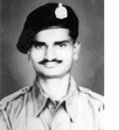
1. Who is Anna Hazare?

An ex-army man. Fought 1965 Indo-Pak War

2. What's so special about him?

He built a village Ralegaon Siddhi in Ahamad Nagar district, Maharashtra


3. So what?

This village is a self-sustained model village. Energy is produced in the village itself from solar power, biofuel and wind mills.

In 1975, it used to be a poverty clad village. Now it is one of the richest village in India. It has become a model for self-sustained, eco-friendly & harmonic village.


4. Ok,...?

This guy, Anna Hazare was awarded Padma Bhushan and is a known figure for his social activities.


5. Really, what is he fighting for?

He is supporting a cause, the amendment of a law to curb corruption in India.


6. How that can be possible?

He is advocating for a Bil, The Jan Lokpal Bill (The Citizen Ombudsman Bill), that will form an autonomous authority who will make politicians (ministers), beurocrats (IAS/IPS) accountable for their deeds.


8. It's an entirely new thing right..?

In 1972, the bill was proposed by then Law minister Mr. Shanti Bhushan. Since then it has been neglected by the politicians and some are trying to change the bill to suit thier theft (corruption).


7. Oh.. He is going on a hunger strike for that whole thing of passing a Bill ! How can that be possible in such a short span of time?

The first thing he is asking for is: the government should come forward and announce that the bill is going to be passed.

Next, they make a joint committee to DRAFT the JAN LOKPAL BILL. 50% goverment participation and 50% public participation. Because you cant trust the government entirely for making such a bill which does not suit them.


8. Fine, What will happen when this bill is passed?

A LokPal will be appointed at the centre. He will have an autonomous charge, say like the Election Commission of India. In each and every state, Lokayukta will be appointed. The job is to bring all alleged party to trial in case of corruptions within 1 year. Within 2 years, the guilty will be punished. Not like, Bofors scam or Bhopal Gas Tragedy case, that has been going for last 25 years without any result.


9. Is he alone? Whoelse is there in the fight with Anna Hazare?

Baba Ramdev, Ex. IPS Kiran Bedi, Social Activist Swami Agnivesh, RTI activist Arvind Kejriwal and many more.

Prominent personalities like Aamir Khan is supporting his cause.


10. Ok, got it. What can I do?

At least we can spread the message. How?

Putting status message, links, video, changing profile pics.

At least we can support Anna Hazare and the cause for uprooting corruption from India.

At least we can hope that his Hunger Strike does not go in vain.

At least we can pray for his good health.


Thanks for reading.
Please Spread This msg As Much As You Can 'n Tell Others To Do The Same.. !

Bikash

Thursday, July 21, 2011

Converting Dataset to a C# model class

Problem statement: 

My Webservice is returning a dataset comprising of 1 table, which contains 135 columns. I need to build a model class (in C#), which should have all 110 column names as property name of the class.
Is there any way by which I can use the file stream writer & build my class?
Possible Solution:
Step 1: Convert your Dataset to a XML doc:
            var xmlSW = new System.IO.StreamWriter(@"c:\xml\Krishna.xml");
            myDataset.WriteXml(xmlSW, System.Data.XmlWriteMode.WriteSchema);
            xmlSW.Close();
Step 2: Convert your XML document to XSD doc.
   -> Open Visual Studio Command Promt.
   -> Type : xsd c:\xml\Krishna.xml (that is the path of the xml file.)
For Eg: C:\Windows\system32>xsd c:\xml\krishna.xml
Microsoft (R) Xml Schemas/DataTypes support utility [Microsoft (R) .NET Framework, Version 4.0.30319.1] Copyright (C) Microsoft Corporation. All rights reserved.
Writing file 'C:\Windows\system32\krishna.xsd'.
Step 3: Convert your xsd to C# class.
   -> Open Visual Studio Command Promt.
   -> Type : xsd krishna.xsd /classes
For Eg: C:\Windows\system32>xsd krishna.xsd /classes
Microsoft (R) Xml Schemas/DataTypes support utility [Microsoft (R) .NET Framework, Version 4.0.30319.1] Copyright (C) Microsoft Corporation. All rights reserved.
Writing file 'C:\Windows\system32\krishna.cs'.
NB: The generated property name can be renamed properly (if not proper) by Resharper or similar tools.
The output class file might contain some unnecessary information that u need to clean up. So this method is suitable if your dataset is returning huge tables containing hundreds of columns & you dont want to copy paste all of them manually to create your own mapping class.
Once you get the structure (class), you can use XmlSerializer to convert it to object or viceversa.

Monday, July 11, 2011

How to Search Mail in Gmail - All about search filters

How to Search Mail in Gmail


Search Mail in Gmail

To find messages in Gmail:
  • Type search terms in the Search Mail field.
    • You can go to Search Mail quickly by pressing /.
Use the following operators:
  • subject: - Search the Subject line.
    Example: "subject:bahamas" finds all messages with "bahamas" in the Subject.
  • from: - Search for sender name and email address. Partial addresses are okay.
    Example: "from:heinz" finds all messages from "heinz@about.com", but also all messages from "your.heinz@tqn.com".
  • to: - Search the To line for names and addresses.
    Example: "to:quertyuiop@gmail.com" finds all messages sent directly (not via Cc: or Bcc:) to quertyuiop@gmail.com.
  • cc: - Search recipients in the Cc field.
    Example: "cc:quertyuiop@gmail.com" finds all messages that were sent to quertyuiop@gmail.com as a carbon copy.
  • bcc: - Search for addresses and names in the Bcc field. Note this only works with emails you sent to Bcc recipients from Gmail.
    Example: "bcc:heinz" finds all messages that you sent with, for example, "hein@example.com" in the Bcc field.
  • label: - Search for messages assigned a label. (Replace whitespace characters in label names with hyphens.)
    Example: "label:toodoo-doll" finds all messages labeled "toodoo doll".
  • is:starred - Search for messages that are starred.
  • With Superstars enabled:
    • has:yellow-star - Search for messages with a yellow star.
    • has:red-star - Search for messages with a red star.
    • has:orange-star - Search for messages with an orange star.
    • has:green-star - Search for messages with a green star.
    • has:blue-star - Search for messages with a blue star.
    • has:purple-star - Search for messages with a purple star.
    • has:yellow-bang - Search for messages with a yellow exclamation mark.
    • has:red-bang - Search for messages with a red exclamation mark.
    • has:purple-question - Search for messages with a purple question mark.
    • has:orange-guillemet - Search for messages with two orange forward arrows.
    • has:blue-info - Search for messages with a blue i.
  • is:unread - Search for new and unread messages.
  • is:read - Search for messages that have already been opened.
  • is:important - Search for messages that are marked important for Priority Inbox.
  • has:attachment - Search for messages that have files attached to them.
  • filename: - Search within file names of attachments. You can also search for file name extensions to restrict your search to certain file types.
    Example: "filename:.doc" finds all messages with word processing attachments.
  • is:buzz - Search for Google Buzz posts.
  • is:chat - Search for chats.
  • lang: - Search for messages in a particular language. (Specify the language in English; "Chinese" works, but "中文", "Putonghua" or "Mandarin" do not, for example.)
    Example: "lang:French" returns all emails that contain at least un peu de Français.
  • in: - Search in a standard "folder". You can search in DraftsInboxChatsSentSpam,Trash and anywhere (for everything, including Spam and Trash).
    Example: "in:drafts" finds all messages in your Drafts folder.
  • after: - Search for messages sent after a date. The date must be given in YYYY/MM/DD format.
    Example: "after:2005/05/05" finds all messages sent or received after (and not including) May 5, 2005.
  • before: - Search for messages sent before a date.
    Example: "before:2005/05/05" finds all messages sent or received on May 4, 2005 and earlier.
  • rfc822msgid: - Search for the message with the — just about certainly unique — message ID. Gmail will not search for messages that refer to the message ID (replies, for example). Example: "rfc822msgid:wW28fb6uf@mail.example.com" finds the message with "wW28fb6uf@mail.example.com" in the "Message-ID:" header field.
Operators and search terms can be combined with the following modifiers:
  • By default, terms are combined with (an invisible) "AND".
    Example: "shepherd macaroni" finds all messages that contain both "shepherd" and "macaroni".
  • "" - Search for a phrase. Case does not matter.
    Examples: "shepherd's macaroni" finds all messages containing the phrase "shepherd's macaroni"; 'subject:"shepherd's macaroni' finds all messages that have "shepherd's macaroni" in the Subject field.
  • OR - Search for messages containing at least one of two terms or expressions.
    Examples: "shepherd or macaroni" finds messages that contain either "shepherd" or "macaroni" or both; "from:heinz or label:toodoo-doll" finds messages that either come from a sender that contains "email.guide" or appear under the label "toodoo doll".
  • - - Search for messages that do not contain a term or expression.
    Examples: "-macaroni" finds all messages that do not contain the word "macaroni"; "shepherd -macaroni" finds all messages that contain the word "shepherd" but not "macaroni"; 'subject:"shepherd's macaroni" -from:heinz' finds all messages with "shepherd's macaroni" in the subject that were not sent from an email address or name containing "heinz".
  • () - Group search terms or expressions.
    Examples: "subject:(shepherd macaroni)" finds messages that have both "shepherd" and "macaroni" somewhere in the Subject line (but not necessarily as a phrase); "from:heinz (subject:(shepherd OR macaroni) OR label:toodoo-doll)" finds all messages from a sender who has "email.guide" in their name that either have "shepherd" or "macaroni" (or both) in the Subject line or appear under the label "toodoo doll".


Here is table of "query words" (Summary):
Operator
Definition
Example(s)
from:
Used to specify the sender
Example - from:amy
Meaning - Messages from Amy
to:
Used to specify a recipient
Example - to:david
Meaning - All messages that were sent to David (by you or someone else)
subject:
Search for words in the subject line
Example - subject:dinner
Meaning - Messages that 
have the word "dinner" in the subject
OR
Search for messages matching term A or term B*
*OR must be in all caps
Example - from:amy OR from:david
Meaning - Messages from Amy or from David
-
(hyphen)
Used to exclude messages from your search
Example - dinner -movie
Meaning - Messages that contain the word "dinner" but do not contain the word "movie"
label:
Search for messages by label*
*There isn't a search operator for unlabeled messages
Example - from:amy label:friends
Meaning - Messages from Amy
 that have the label "friends"
has:attachment
Search for messages with an attachment
Example - from:david has:attachment 
Meaning - Messages from David that 
have an attachment
filename:
Search for an attachment by name or type
Example - filename:physicshomework.txt
Meaning - 
Messages with an attachment named "physicshomework.txt"
Example - label:work filename:pdf
Meaning - 
Messages labeled "work" that also have a PDF file as an attachment
" "
(quotes)
Used to search for an exact phrase*
*Capitalization isn't taken into consideration
Example - "i'm feeling lucky"
Meaning - 
Messages containing the phrase "i'm feeling lucky" or "I'm feeling lucky"
Example - subject:"dinner and a movie"
Meaning - 
Messages containing the phrase "dinner and a movie" in the subject
( )
Used to group words
Used specify terms that shouldn't be excluded
Example - from:amy (dinner OR movie)
Meaning - 
Messages from Amy that contain either the word "dinner" or the word "movie"
Example - subject:(dinner movie)
Meaning - 
Messages in which the subject contains both the word "dinner" and the word "movie"
in:anywhere
Search for messages anywhere in your account*
*Messages in 'Spam' and 'Trash' are excluded from
searches by default
Example - in:anywhere subject:movie 
Meaning - 
Messages in 'All Mail', 'Spam', and 'Trash' that contain the word "movie"
in:inbox
in:trash
in:spam
Search for messages in 'Inbox', 'Trash', or 'Spam'
Example - in:trash from:amy
Meaning - 
Messages from Amy that are in the trash
is:starred
is:unread
is:read
Search for messages that are starred, unread or read
Example - is:read is:starred from:David
Meaning - 
Message from David that have been read and are marked with a star
cc:
bcc:
Used to specify recipients in the 'cc' or 'bcc' fields
Example - cc:david 
Meaning - 
Messages that were cc-ed to David
after:
before:
Search for messages after or before a certain date*
*Date must be in yyyy/mm/dd format.
Example - after:2004/4/17 before:2004/4/18 
Meaning - 
Messages sent on April 17, 2004.*
*More precisely: Messages sent on or after April 17, 2004, but before April 18, 2004.